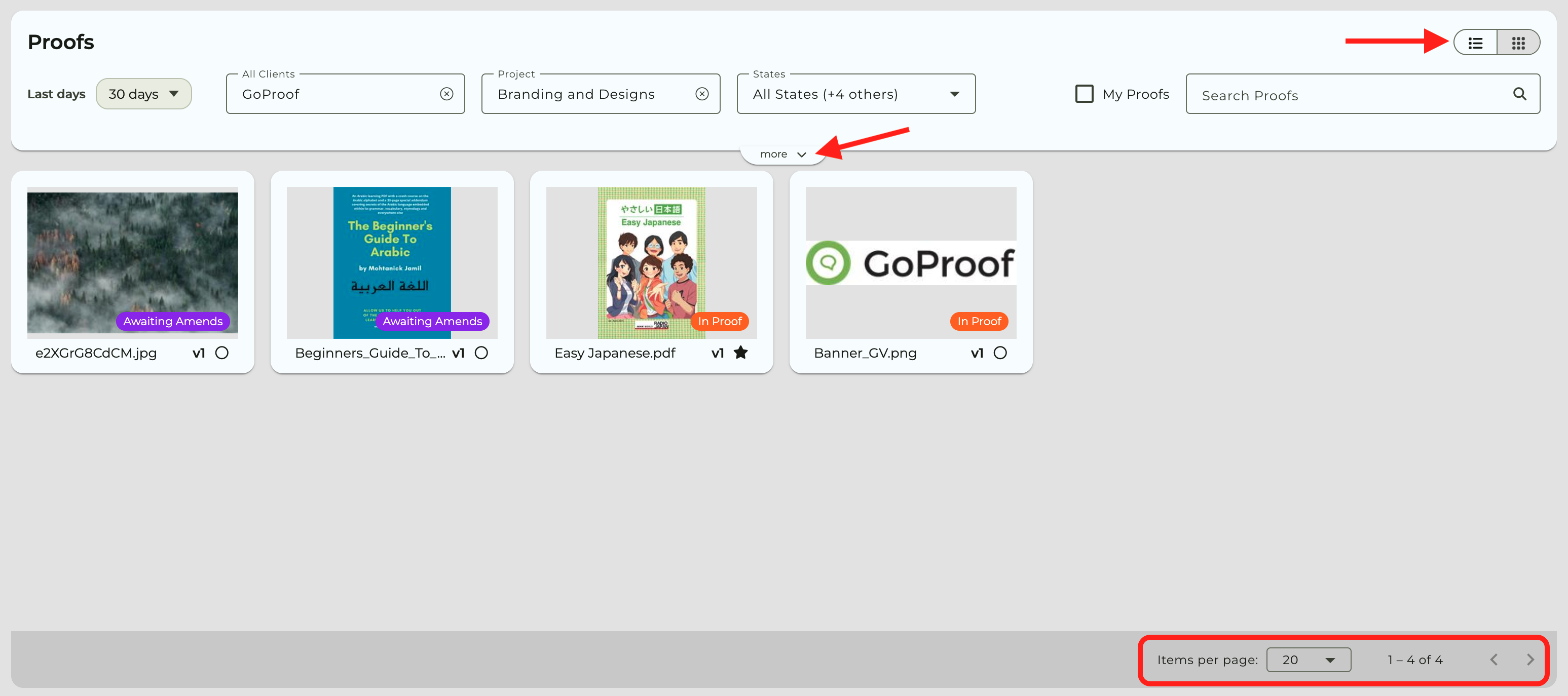
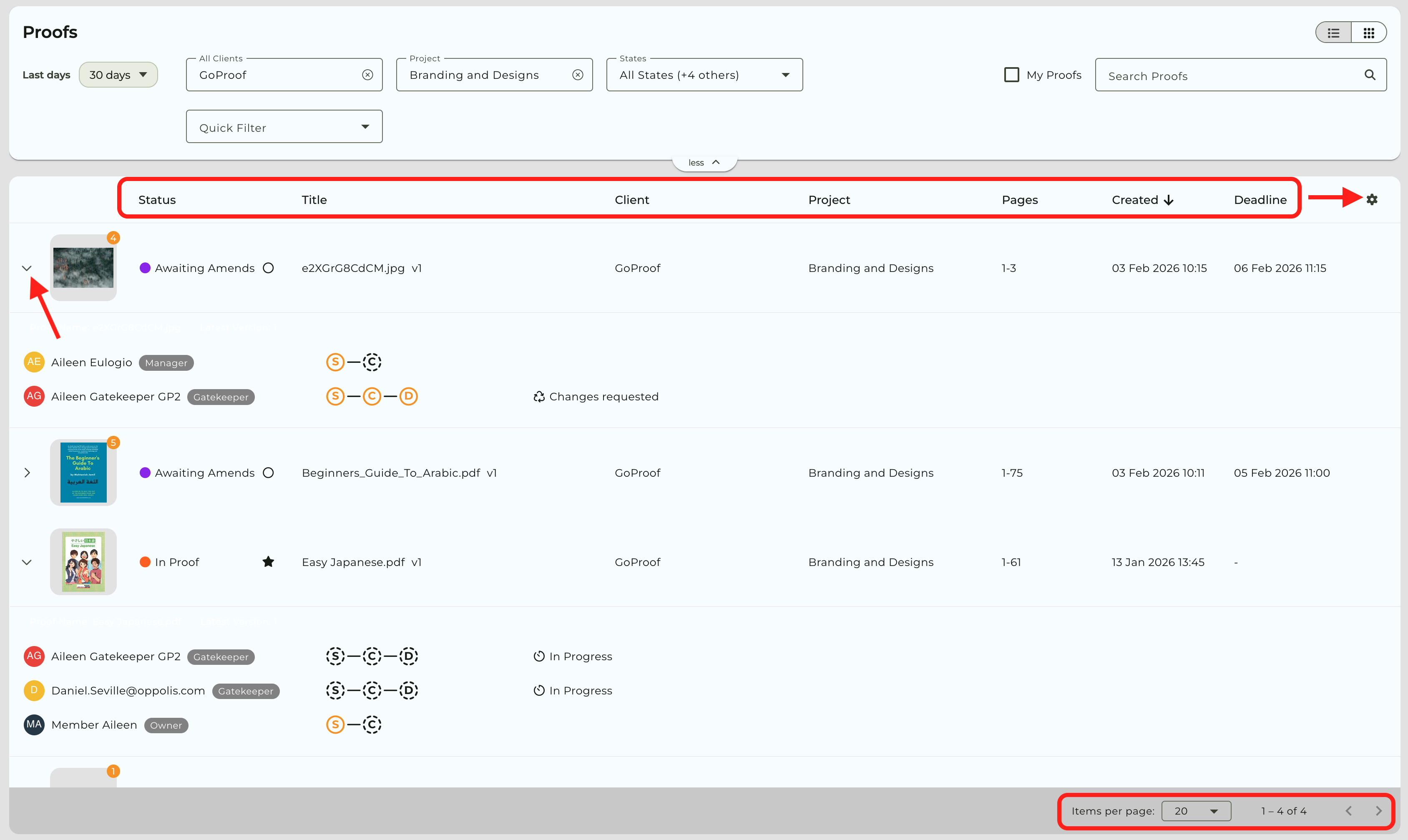
The Proofs Dashboard gives you a clear, at-a-glance view of all your proofs. See thumbnails, status, versions, number of pages, deadlines, and creation dates. Filter and sort to focus on what matters and easily open any proof to review or update it, keeping your proofing work organised and on track.
If you are accessing the proof sent to you via the notification's proof link, simply exit that proof and you will be redirected to the Proofs dashboard which is your main workspace. In here, you will see all the proofs you are a collaborator of. Here's the helpsheet regarding the Proof Link.
Alternatively, login to your account or send a forgot password email in order to login here.
Dashboard Toolbar Options
The Toolbar at the top of the page lets you refine which proofs are displayed. The options here are available at all times when you are viewing your proofs in the dashboard.
Viewing Options
Choose how you want to see your proofs. Use the toggle icons on the top-right corner to switch between:
List view
Gallery view
Dropdown Filters
Last days - for proofs sent to you within the past day, 3 days, 7 days, 30 days, etc.
All Clients - for proofs in a particular client.
Project - for proofs in a particular project.
States - for proofs you want to see in a particular status(es).
More
Quick Filter - to filter proofs with New Comments, New Proofs and/or New Mentions.
Sort By (in Gallery view only) - to sort proofs by Status, Title, Created, Deadline, etc.
My Proofs checkbox
Select this option if you want to view all proofs that you are a Collaborator of and requires a decision from you.
Search Proofs field
Use this field to search for a proof by entering keywords that match the proof name / title.
Features available in Gallery view
The Gallery view shows large thumbnails of your proof for a visual overview. Click on the proof cards/thumbnail to open the proof to review.
Proof cards
Proofs are displayed as thumbnail cards with a preview image.
Each card shows the following:
Proof name,
Version number
Proof status
Proof activity icons
Filtering
Use any of the toolbar options to help you narrow down the proofs you see in this view.
Sorting
Use the Sort by dropdown selector in the toolbar by clicking on the More button to reveal additional options.
Use the icon beside it to switch between ascending and descending order.
Pagination
Use the Items per page selector at the bottom of the page to control how many proof cards are shown.
Features available in List View
The List view shows proofs in a structured table, where each rown represents a proof and each column shows specific details like its title, status, created date and deadline.
Column layout and sorting
Proofs are shown in rows with detailed columns.
Click on any column header to sort proofs in ascending or descending order by Title, Created date, Deadline or other available columns.
Column controls
Click on the cogicon on the far right of the column header area to show or hide columns based on your workflow.
Collaborator progress
Click on the careticon on the left hand side of the proof thumbnail (if you opted to show the Previewcolumn) to expand collaborator activity.
In here, you can view who has seen, commented, finished their review and made a decision on the proof.
Filtering
Use any of the toolbar options to help you narrow down the proofs you see in this view.
Pagination
Use the Items per page selector at the bottom of the page to control how many proof cards are shown.
Proof dashboard icons
Icons appear next to proofs in List view and on proof cards in Gallery view. Hover over an icon to view its meaning.
Star - the proof was sent to you but you have not opened it yet.
Filled circle - there are new comments in the proofs which you have not read yet.
Empty circle - there are no new or unread comments in the proof.
Bell - there is a deadline set on the proof.
Lock - the proof was sent as confidential and you will need to enter your login details to view it.
Tick - for users with a Reviewer proofing role, this icon means you have finished reviewing the proof and can no longer add further comments.
If you need further guidance or run into any issues, our Support Team are here to help.
By clicking “Accept”, you agree to the storing of cookies on your device to enhance site navigation, analyze site usage, and assist in our marketing efforts. View our Privacy Policy for more information. Update your Cookie Preferences.